net stop w32time
About: Exchange 2013-2016-2019-Online - Powershell - Windows 2012-2016-2019 - Teams - Office365 - PKI - Microsoft365
11 March 2021
Set Windows Server to use external NTP server
net stop w32time
27 February 2021
Usefull command's and little PowerShell scripts
Quickly get the Computer Name, Model, Make, and other useful information
Get-WMIObject -Class Win32_ComputerSystem information about the System Get-WMIObject -Class Win32_BIOS Information about the BIOS Get-WMIObject -Class Win32_Baseboard Information about the Motherboard Get-WMIObject -Class Win32_Processor Information about the CPU Get-WMIObject -Class Win32_LogicalDisk Information about Logical Drives (Includes mapped drives and I believe PSDrives) Get-WMIObject -Class Win32_DiskDrive Information about Physical Drives Get-WMIObject -Class Win32_PhysicalMemory Information about the Memory Get-WMIObject -Class Win32_NetworkAdapter Information about the NIC Get-WMIObject -Class Win32_NetworkAdapterConfiguration Information about the NICs Configuration
Check your PowerShell Version
$PSVersionTableRequires PowerShell 3.0+
Get-NetAdapter | Restart-NetAdapter
Browse UNC path with PowerShell
To access UNC via PowerShell;
cd \\servername\C$\Path\To\File
$Users = Get-ChildItem C:\Users\ -Exclude “Administrator”,”Public”,”Default*” # Exclude any other defaults that you don’t want. foreach($User in $Users.name){ $Path = “C:\Users\$User\Desktop”; Copy-Item -Path “\\Path\To\Source\File.txt” -Destination $Path\File.txt }
Get free disk space on drives
This can either be run locally or part of a larger script to hit multiple machines.
$Drive=Get-WmiObject Win32_LogicalDisk -Filter “DriveType = 3” $DriveSize=$Drive.Size;$DriveSize=[math]::Round($DriveSize/1GB) $FreeSpace=$Drive.FreeSpace;$FreeSpace=[math]::Round($FreeSpace/1GB) $DriveName=$Drive.Name $ComputerName=Get-WmiObject Win32_ComputerSystem;$ComputerName=$ComputerName.Name $UsedSpace=$DriveSize – $FreeSpace;$UsedSpace=[string]$UsedSpace+” GB free on drive $DriveName on computer $ComputerName”
26 February 2021
Enable Wake On Lan with PowerShell and send Wake On Lan packet with PowerShell
Credit for the script goes to Jan-Henrik Damaschke at https://www.itinsights.org
function Set-WakeEnabled
{ <# .SYNOPSIS Set WoL on nic Author: Jan-Henrik Damaschke (@jandamaschke) License: BSD 3-Clause Required Dependencies: None Optional Dependencies: None .DESCRIPTION Set Wake on Lan (WOL) settings for specific network interface card .PARAMETER InterfaceName Specifies the name of the interface where WoL setting should be changed .PARAMETER WakeEnabled Specifies if WoL should be enabled or disabled .EXAMPLE PS C:\> Set-WakeEnabled -InterfaceName Ethernet -WakeEnabled $true .LINK http://itinsights.org/ #> [CmdletBinding()] Param( [Parameter(Mandatory = $True, ParameterSetName="InterfaceName")] [String] $InterfaceName, [Parameter(Mandatory = $True)] [String] $WakeEnabled, [Parameter(Mandatory = $True, ParameterSetName="ConnectionID")] [String] $NetConnectionID ) If (-NOT ([Security.Principal.WindowsPrincipal] [Security.Principal.WindowsIdentity]::GetCurrent()).IsInRole([Security.Principal.WindowsBuiltInRole] "Administrator")) { Write-Warning "You do not have Administrator rights to run this script!`nPlease re-run this script as an Administrator!" Break } $nicsWakeEnabled = Get-CimInstance -ClassName MSPower_DeviceWakeEnable -Namespace root/wmi $nics = Get-CimInstance -ClassName Win32_NetworkAdapter | Where-Object NetEnabled -eq $true if ($InterfaceName){ $nic = $nics | Where-Object Name -eq $InterfaceName } else { $nic = $nics | Where-Object NetConnectionID -eq $NetConnectionID } $nicWakeEnabled = $nicsWakeEnabled | Where-Object InstanceName -like "*$($nic.PNPDeviceID)*" $enabled = $nicWakeEnabled.Enable if (!($enabled -and $WakeEnabled)){ Set-CimInstance $nicWakeEnabled -Property @{Enable=$enabled} } }
Find the mac address of the nic you want to wake up.Get-WmiObject win32_networkadapterconfiguration | select description, macaddress Or Get-CimInstance win32_networkadapterconfiguration | select description, macaddress To send a wake on lan package:
Install-Module -Name wakeonlan -Force Import-module -Name wakeonlan Invoke-WakeOnLan -MacAddress 84:D2:4A:0F:78:44
16 February 2021
Open Windows Explorer collapsed
Anoying.
When opening Windows Explorer it opens with all folders collapsed. The behaviour can come from different settings, such as:
Showing all folders
Allowing network discovery
Last opened folder saved when closing the explorer
And probably a few I don't k now about.
Some dude (EpilepticUnderscore) over at social.technet.com created a batch file to overcome this annoyance.
See the original thread here: Collapse all folder-trees when closing Explorer (microsoft.com)
The batch job way:
29 January 2021
Single Sign On broken - Azure Active Directory Seamless Single Sign-On
I don't know if this is something that only happens in my environment, but it happens.
When ever I start AADConnect and make a change in the configuration, add an OU for example, and save the change SSO breaks.
Quick way to see what's up is here:
If there are zero Seamless single sign-on domain's than you know what's up.
The SSO trust is broken.
There is a blogpost on docs.microsoft.com about it:
Azure Active Directory Connect: Troubleshoot Seamless Single Sign-On | Microsoft Docs
The steps listed there are in this script below.
Run this from the AADConnect machine:
# https://docs.microsoft.com/en-us/azure/active-directory/hybrid/tshoot-connect-sso # Import the Seamless SSO PowerShell module cd \ cd 'C:\Program Files\Microsoft Azure Active Directory Connect' Import-Module .\AzureADSSO.psd1 # Get the list of Active Directory forests on which Seamless SSO has been enabled New-AzureADSSOAuthenticationContext Get-AzureADSSOStatus #Disable Seamless SSO for each Active Directory forest where you've set up the feature $creds = Get-Credential domain\username Disable-AzureADSSOForest -OnPremCredentials $creds # Enable Seamless SSO for each Active Directory forest Enable-AzureADSSOForest # Enable the feature on your tenant Enable-AzureADSSO -Enable $true
11 January 2021
problem 4003 (INSUFF_ACCESS_RIGHTS)
When I tried to change a mailbox from type "User mailbox" to type "Shared mailbox" I got this error:
[PS] C:\>Set-Mailbox mailboxalias -Type shared -force
Error on proxy command 'Set-Mailbox -Type:'Shared' -Identity:'mailboxalias' -Confirm:$False -Force:$True' to server servername.domain.lan: Server version 15.00.1497.0000, Proxy method RPS:
Active Directory operation failed on servername.domain.lan. This error is not retriable. Additional information: Insufficient access rights to perform the operation.
Active directory response: 00002098: SecErr: DSID-03150F93, problem 4003 (INSUFF_ACCESS_RIGHTS), data 0
+ CategoryInfo : NotSpecified: (:) [Set-Mailbox], CmdletProxyException
+ FullyQualifiedErrorId : Microsoft.Exchange.Configuration.CmdletProxyException,Microsoft.Exchange.Management.RecipientTasks.SetMailbox
+ PSComputerName : servername.domain.lan
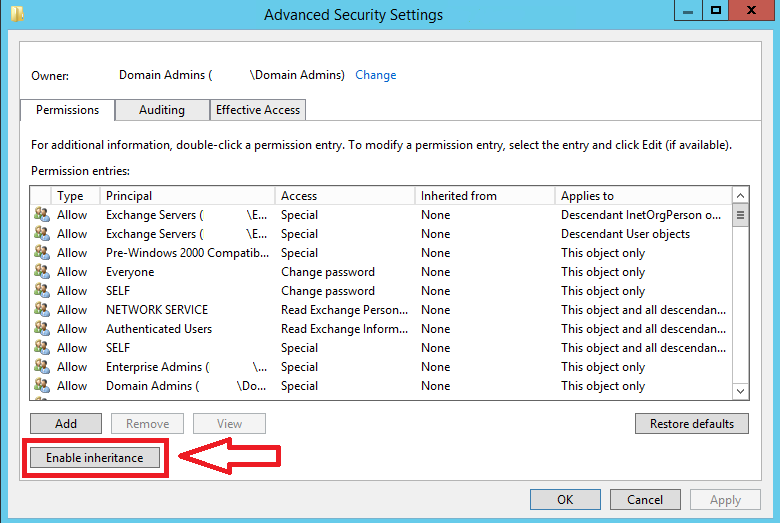
Turns out this has to do with user rights inheritance, find the user, select the "Security" tab and click the "Advanced" button.
There you should see the "Enable inheritance" button. Click it and wait for Active Directory synchronization.
Now when you run the same commandlet again, you should see no output, and thus the command worked. To double check you could run:
Get-Mailbox mailboxalias | Select RecipientTypeDetails
07 January 2021
550 5.7.520 Access denied & 550 5.4.142 RESOLVER.FWD.LoopingTarget
Since a couple of months Office365 and Exchange Online are blocking the auto forwarding of email to external domains.
And this is the error that can be found in the message trace results:
Error: 550 5.7.520 Access denied, Your organization does not allow external forwarding. Please contact your administrator for further assistance. AS(7555)
While this is a good idea in general, sometimes you want to enable it.
Here's how:
Go to https://protection.office.com/antispam
And create a new outbound policy.
Give it a name, description, decide whether you to be notified or not and if you want to apply recipient limits with an action if the limits are exceeded.
The the following is important.
At the automatic forwarding choose "On - Forwarding is enabled".
Choosing "Automatic - System-controlled" will not let the email be sent. This is the setting for the default policy "Outbound spam filter policy (always ON)".
Then add a condition at "Applied to".
The easiest condition is to create a mail enabled security group that holds all the user accounts that you want to grant this right.
05 January 2021
When was the last time you reset the password of the AzureADSSOACC account?
$user = [adsi]"LDAP://CN=AzureADSSOACC,CN=Computers,DC=yourdomain,DC=lan" [PSCustomObject] @{ name = $user.name.Value pwdLastSet = [datetime]::FromFileTime($user.ConvertLargeIntegerToInt64($user.pwdLastSet. value)) }
30 December 2020
How to cleanup expired certificates from a Microsoft CA with PowerShell and Shrink the DB
This a shameless copy of the original post by André Gibel over at https://www.gibel.net/
The reason why I copied it is because there is very little info on this subject and even though the post is from 2014, it still applies today.
Regularly (depending on the number of issued certificates) you have to perform a clean-up of expired certificates from your CA (Certification Authority) DB and then shrink the DB to get rid of the “white space”.
You have to perform the following 3 steps in order:
1. Make a backup of your CA DB (protected with a password) to another Server / medium
2. Clean-up all
expired certificates from all 4 categories with my PowerShell Script
- the script and all the details are explained below.
3. Shrink your CA database to get rid of the
“whitespace”
- run the
following command with the path to the .edb DB file
esentutl /d "C:\Windows\System32\CertLog\IssuingCA.edb"
- at the end
the DB - file is more than
100 MB smaller than before, depending on the size
your database is.
- at this
point you have to enable and start the CA Service again
Here I explain the PowerShell script
in detail (the script is used in step 2)
The Microsoft Enterprise
CA I’m responsible for is running on a Microsoft Windows Server 2008 Enterprise
Server
- with PowerShell 2.0
installed
- no 3rd party PS modules are used
- the certutil.exe is used by the PowerShell (PS) script
- the PS script I created is "Cleanup_MSPKI_Cert_v1.1.ps1" and
contains 3 functions
On this CA Server in the
C:\ root drive I create a folder “_scripts “ (I don’t use PS remoting) and copy
my PowerShell script “Cleanup_MSPKI_Cert_v1.1.ps1” into this folder
Per default
the functions "Remove-ExpiredCertFromDB" writes the temporary files
to a subfolder within C:\_scripts\PKICleanupLog.
You can change this
default folder path with the parameter “CleanedFolderLogPath”
The 3
functions I have implemented are:
A.)
Get-PublishedCATemplate
B.) Get-IssuedCert
C.) Remove-ExpiredCertFromDB
A.) Get-PublishedCATemplate
function
Get-PublishedCATemplate{
[CmdletBinding()]
Param (
[parameter()]
[string]$filter
)
$FilterLen = ("msPKI-Cert-Template-OID =").length+3
$AllPublishedTemplates = Invoke-Expression "certutil.exe –catemplates –v |
select-string msPKI-Cert-Template-OID"
$AllPublishedTemplates | foreach{
$tmp= ($_.line).Substring($FilterLen)
$splitarr = $tmp.split(" ",2)
$obj = New-Object
PSObject
Add-Member -Input $obj -Name "name" -MemberType Noteproperty -Value
$Splitarr[1].trim()
Add-Member -Input $obj -Name "oid" -MemberType Noteproperty -Value
$Splitarr[0].trim()
if ($PSBoundParameters["filter"]){
if ($Splitarr[1].trim() -match $filter){
write-output
$obj
}
}
else{
write-output
$obj
}
}
}
I assign the
oid of ONE template (=> change filter that you get only one result) to
the variable WSTemplate
$WSTemplate =
(Get-PublishedCATemplate -filter workstation).oid
B.) Get-IssuedCert
With this function
you can list the certificates issued from all templates or a certain
template (specified with it’s oid = $CertTemplate variable) which are
issued beginning at a certain date.
function
Get-IssuedCert{
[CmdletBinding()]
Param (
[ValidatePattern('^([0-9\.\s])+$')]
[string]$CertTemplate,
[ValidatePattern('^\d\d[\./]{1}\d\d[\./]{1}\d\d\d\d$')]
[string]$Date
)
if
($PSBoundParameters["CertTemplate"]){
Invoke-Expression "certutil.exe -view -restrict 'certificate
template=$CertTemplate,disposition=20,notbefore>=$Date' -out
'Request.RequestID,Request.RequesterName,NotBefore,NotAfter,Request.Disposition'"
}
else {
#
displays Certificates issued with any custom template
Invoke-Expression "certutil.exe -view -restrict
'disposition=20,notbefore>=$Date' -out
'Request.RequestID,Request.RequesterName,NotBefore,NotAfter,Request.Disposition'"
}
}
The following example
lists all 29 certificates (from ALL templates) issued from 18 December 2014 and later …. (with this version it’s not
possible to select a time range / only a “start-date”)
Get-IssuedCert
-Date 18.12.2014
The following example lists ONLY the 3 certificates which are
issued with the Template $WSTemplate (OID of “…- Workstation – Authentication
Certificate”) beginning December 18. 2014
$WSTemplate =
(Get-PublishedCATemplate -filter workstation).oid
Get-IssuedCert -CertTemplate $WSTemplate -Date 18.12.2014
C.) Remove-ExpiredCertFromDB
This is an advanced
function and all available parameters are displayed with the get-help command
- the expired
certificates to view (1st step) and then delete are in one of 4 folders
- I select
this “folder” with the -state parameter
- the script
creates a log file (also needed for further parsing) in a separate folder
These folders are created automatically if
they don’t exist yet.
In a first step always run the cmdlet without the "-delete" parameter
so nothing is really deleted.
I also recommend the ISE instead of the shell.
And I also always run this cmdlet with the “-verbose” parameter.
The following example
displays all issued (and expired) certificates till 18.12.2014 --- they
are not really deleted yet.
Remove-ExpiredCertFromDB
-State issued -Date 18.12.2014 -Verbose
Without the -delete switch
parameter the log file has "-ViewOnly" in it’s name
Below is the
output from the example above / 396 entries “would be” deleted from the
“issued folder” (or category) if you run the cmdlet with “-delete”
The following
example lists / deletes certificates from a certain (workstation
authentication) template expired up to 18
december 2014
$WSTemplate =
(Get-PublishedCATemplate -filter workstation).oid
Remove-ExpiredCertFromDB -State issued -CertTemplate $WSTemplate -Date
18.12.2014 -Verbose
With the added-delete switch parameter you really delete the entries.
This
step can take some time if there are a lot of entries.
$WSTemplate =
(Get-PublishedCATemplate -filter workstation).oid
Remove-ExpiredCertFromDB -State issued -CertTemplate $WSTemplate -Date
18.12.2014 -Verbose -delete
The output at the end (and the log file)
When you run the same cmdlet again, you see that there aren’t
any entries to delete from the DB
The latest
(full) version of this script with the 3 functions you can download from the
Microsoft Script Gallery: go
to download
Since
TechNet is retired and will be taken offline any time soon a backup can be
downloaded here:
23 December 2020
Convert security group to mail enabled security group with Powershell
Find your AD group name:
Get-ADGroup -Identity "groupname"
Enable the group for Email:
Enable-DistributionGroup -Identity "groupname" -PrimarySMTPAddress groupname@domain.com