Searching for a good and clear "how to" i came across this blogpost from Adrian Costea that sums it up in a very easy and understandable way.
Auto enrollment it self isn't hard at all, but if you're new to this it's hard to figure out where to start.
Well this is how its done:
Set Up Automatic Certificate Enrollment (Auto enroll)
Managing certificates usually does not need too much intervention. Issuing
and enrolling for certificates, again is a piece-of-cake… in a small
environment. But if you are running more than let’s say 50 workstations and
servers enrolling for certificates is a week job, if not more. To ease the
work; actually to automate this you can use Active Directory since you already
have the tool in your hands. This is one of the advantages of an Active
Directory domain with an Enterprise CA; you can deploy certificates automatically using a process known as auto
enrollment. This greatly reduces the amount of administrative overhead
required to deploy certificates to your clients; and all you need for this is a
GPO linked to your domain or an OU configured with the auto enroll policy.
Computer
Certificates Auto-Enrollment
Now log in to one of your domain controllers and open the Group
Policy Management console.

Here you have to decide where the GPO should be linked. If you want only a
bunch of clients to be configured for auto enrollment, create and link the GPO
to the OU where those clients sit. If however, you want the policy to apply to
all clients in your domain, create and link the GPO to the root of the domain.
To create the GPO, right-click the root of the domain or the OU and
choose Create a GPO in this domain, and Link it here…. Give it a
name and click OK.
On the newly created GPO do a right-click and choose Edit.
Once the Group Policy Management Editor opens, navigate
to Computer Configuration > Policies > Windows Settings >
Security Settings > Public Key Policies. Here you will see Certificates
Services Client – Auto-Enrollment policy.
Open its properties and choose Enabled on the Configuration
Model box, then check the boxes Renew expired certificates,
update pending certificates, and remove revoked certificates and Update
certificates that use certificate templates. Click OK when
you are done. As you can see this policy will automatically renew any expired
certificates and also cleans up the certificates store of any certificates that
expired.
Only configuring this will not get the job done. You have to tell the
clients what type of certificate they can request and this can be done by
creating a Certificate Request Setting. To set it up expand
the Public Keys Policies folder, right-click Automatic
Certificate Request Settings and choose New > Automatic
Certificate Request.
Click Next to skip the Welcome screen of
the wizard.
On the Certificates Templates page you can see all the
templates that you can use to issue certificates from. The only one we are
interested right now is the Computer certificate. Select it
and click Next and at the end click Finish to
close the wizard.
Now you have a Certificate Request Settings created. Let’s
tests it and see if it works.
Log in to one of you clients and open the certificate store from Start
> Run > mmc. Once the console opens, from the File menu
choose Add/Remove Snap-in.
In the Add/Remove Snap-ins window select Certificates and
click the Add button.
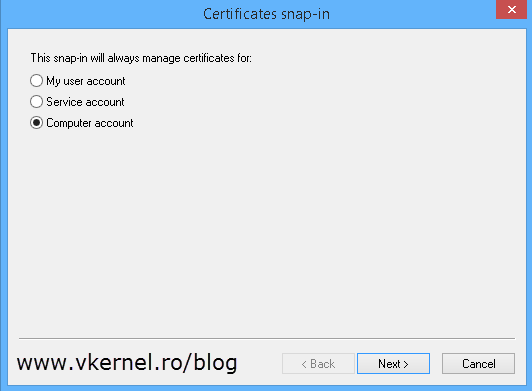
Choose Computer account > Local computer.
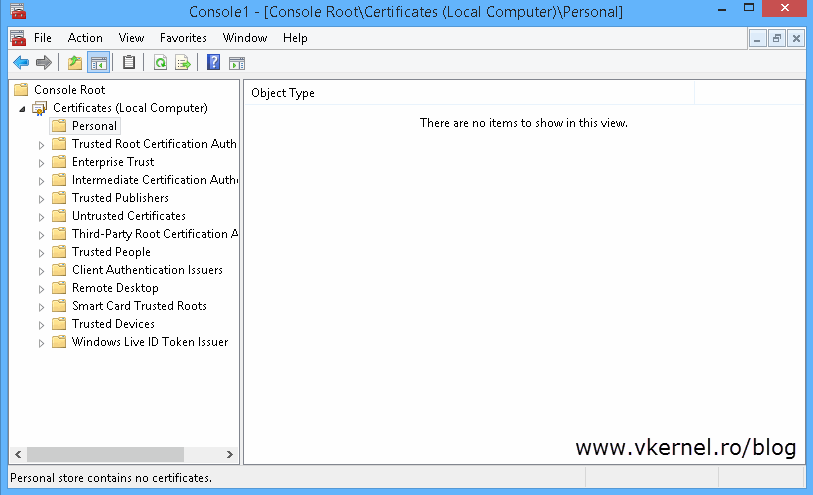
If you look in the Personal folder you can see that there
is no certificate. Too see the magic happen in real time do a gpupdate
/force then refresh the console. After this a computer certificate
“magically” appears.
Oh yeah, and the certificate also has a private key, which is what we
wanted.
Since this is group policy, you will have to wait between 90 and 120
minutes for the policy to get in effect. Then all clients that are affected by
this GPO will auto-enroll for a computer certificate from your internal CA.
User
certificates Auto-Enrollment
Now I know that most of you also need a way to auto-enroll for user
certificates, so these users can encrypt their personal data or secure their
emails. For this, a few things need to be modified or added to your Enterprise
Internal CA and user accounts. First of all the users need to have an email
address present in the E-mail field of their AD account.
You don’t need to have an
email server present in your environment like Exchange server, just an email
address typed in the user’s E-mail account field.
then, a new certificate template needs to be created. Log in to one of your
domain controllers and open the Certification Authority console.
Right-click the Certificate Templates folder and choose Manage.
Search for the User template, right-click it and choose
duplicate.
On the General tab type a name for the new template then
go to the Security tab. Here select Domain Users from
the ACL (Access Control List) and in the Permissions section
check the Enroll (should be already checked, but just in case)
and Auto enroll box. Click

Back on the Certification Authority console, right-click
the Certificate Templates folder one more time and
choose New > Certificate Template to Issue. From the list,
search for the new template, select it and click OK.
Now that the template is ready we need to set up the GPO that request
certificates on behalf of the user. Still on this domain controller, open
the Group Policy Management console and create a new GPO.
Again this can be created/linked to the root of the domain or an OU. If you
link it to an OU make sure is the one where users are present not computers.
Once you create the GPO, right-click it and choose Edit. In
the Group Policy Management Editor console expand User
Configuration > Policies > Windows Settings > Security Settings and
click on the Public Key Policies folder. Here we have a view almost
exactly we had when we configured the computer certificate auto-enrollment. The
policy that we are interested in is Certificate Services Client –
Auto-Enrollment, so double click it to open its properties; or right-click
> Properties.
From the Configuration Model drop-down box choose Enabled then
check the Renew expired certificates, update pending certificates, and
remove revoked certificates and Update certificates that use
certificate templates boxes. Click OK when you’re
done.
All you have to do now is wait for the users to get the new policy, and
that can take between 90 and 120 minutes. If you don’t want to wait and force
this process to see if it works do a gpupdate /force on the
client computer. Then if you open the user certificates store you should see
the certificate issued for the user that you are logged in with.
Taking a look at the certificate itself it has a private key, it was issued
using the template we created and it has all the key usage necessary for the
user to encrypt data and email.